
Web Engineering Simulation: Verify Results for Students and Engineers


Web-based engineering simulation means interactive, browser-accessible tools for analysis, visualization, and teaching. They suit fast exploration, teaching labs, classroom assignments, and preliminary design studies, provided you apply the verification, validation, and uncertainty quantification habits that NIST research and ASME VVUQ practice describe. We build free and paid browser tools at Jewlz Technologies with exactly that use in mind.
TL;DR:
Beginners should start with statics, basic heat transfer, or pipe flow, where hand calculations can check results before moving to CFD or reactor models.
Browser native tools respond instantly but cap model size; choose cloud solving for larger jobs, and virtual desktops when a desktop solver is required.
Before trusting results, test mesh or time step convergence, reproduce a known benchmark, vary key inputs, and document units, assumptions, and settings.
Use browser results for teaching, concept checks, sensitivity studies, and preliminary sizing; confirm consequential designs with desktop analysis, especially for safety or certification.
Cloud tools upload geometry and parameters, while virtual desktops store files remotely; keep proprietary designs local unless storage, access, retention, and encryption are clear.
Table of Contents
What can you actually simulate in a browser?
Browser simulations cover a range of undergraduate engineering topics and can support some early-stage professional work. Collections are usually organized by concept, and a module typically gives you sliders for inputs, probes for measurements, and a way to sample data. The number and range of modules in a collection can signal its scope: a collection spanning several disciplines may support broader teaching, while a single applet may serve as a demonstration.
Core topics you will find:
Statics and mechanics: free-body diagrams, trusses, beams, and equilibrium problems.
Strength of materials: stress, strain, bending, and failure criteria.
Fluid mechanics and CFD: pipe flow, airflow over shapes, and wind tunnel exercises such as those in NASA Glenn’s interactive simulations.
Thermodynamics and heat transfer: cycles, conduction, convection, radiation, and heat exchangers.
Materials and process simulation: deposition, heat treatment, and process optimization.
Reactor and process control: tools like the VirtualCVD Reactor, where instructors set assignments and students sample measurements to practice design of experiments.
If you are new, start with statics, basic heat transfer, or pipe flow, where you can check results by hand. Move to CFD, reactor, and process modules once you are comfortable judging whether an answer is physically reasonable.
Which delivery model fits your problem?
Not every browser tool works the same way underneath, and the difference decides how much fidelity you get and what you need from IT.
Browser-native applets: WebGL and JavaScript run the model on your machine. Interactivity is instant and nothing needs installing, which is why engineering educators favor them. The trade-off is limited model size and, for older Java-based applets, fragility as legacy runtimes disappeared.
Server-side or cloud-executed simulations: you set up a case in the browser, the server solves it, and results return for viewing. Expect latency from queueing and transfer, but you can run larger problems than a laptop tab allows.
Virtual desktops: universities such as Drexel host full desktop engineering packages in the cloud and let students reach them through a remote desktop client. This is the route when a course or project requires a desktop-grade solver, with the usual desktop learning curve.
Integration matters as much as the engine. Look for data import and export in common formats, plus instructor controls for assignments and grading when you are teaching.
Pro Tip: Pick the lightest delivery model that answers your question. Escalate to a cloud solver or virtual desktop only when mesh size, run time, or software requirements force you to.
What can web tools do well, and where do they stop?
Most browser tools share a familiar feature set:
Interactive parameter controls with immediate feedback
Real-time visualization of fields, curves, and animations
Simplified or automatic meshing
Prebuilt labs with guided exercises
Export of plots and data tables
The limits are just as consistent:
Mesh resolution is capped, so fine boundary layers and small features may be unresolved.
Long transients and large CFD domains strain browser memory and patience.
Legacy plugins, especially Java, bring security warnings and compatibility failures.
Export options may be limited, which makes handing results to a desktop workflow awkward.
These limits shape the work you should assign to each tool. Teaching, concept checks, sensitivity exploration, and preliminary sizing fit well. Final design verification, certification evidence, and detailed three-dimensional turbulent flow do not. A simple heuristic: if a wrong answer would cost money, safety, or a design review, treat the browser result as a prediction to be confirmed, not as the answer.
How do you know a browser simulation can be trusted?
Credibility does not come from where a solver runs. According to a NIST summary of industrial CFD practice, model credibility depends on physical modeling quality, user expertise, verification and validation activities, and uncertainty quantification. In practice that means four components: code verification (does the software solve its equations correctly), solution verification (is this particular result converged), model validation against benchmarks or experiments, and uncertainty quantification. NIST also promotes uncertainty quantification in computational materials science to give simulation results quantitative statements of quality.
You can apply a lightweight version of this to any browser tool:
Run a mesh or time-step convergence study and confirm the answer stops changing.
Reproduce a benchmark case with a known analytical or published result.
Vary key inputs one at a time to see which ones drive the output.
Document your inputs, units, and assumptions so someone else can repeat the run.
Browsers can reach laboratory-grade results when the work is validated. A research project at KIT built a real-time platform on the PolyVR engine and reported:
Deviations within ±0.5 K in temperature, ±5% in flow rate, and ±1% in pressure for the tested cases of a laboratory heat exchanger (KIT thermohydraulic platform). That is the payoff of validation, not a promise about every browser tool.
For a deeper walk through the process, see our guide to simulation V&V and our piece on CFD uncertainty quantification.
How do you run your first credible browser simulation?
Follow this sequence and you will have a result you can defend:
Choose a module that matches your topic and your skill level.
Check browser and compute limits before you invest time: supported browser, pop-up settings, and expected problem size.
Define a baseline case with inputs you can verify by hand.
Run it and inspect the visualization for anything physically odd.
Repeat with a refined mesh or smaller time step, then vary one or two inputs.
Export the data, plots, and a note of your settings, and save them.
A few practical notes:
Use a current version of a major browser and allow pop-ups only for the simulation site.
Keep exported files modest; very large result sets slow browser tools and sometimes fail silently.
Prefer a virtual desktop when a course or project specifies a desktop solver.
If you are a student building your toolset, our engineering software guide for students is a good companion. If your project later needs custom integrations or cloud deployment, NULLBIT’s software development services cover that kind of systems work.
What should you know about security and data privacy?
Running a simulation in a browser means your inputs travel somewhere, or at least sit in a browser session. Where they go depends on the delivery model. A browser-native applet may process data locally, but check how the specific tool handles your data. A cloud-solve tool uploads geometry and parameters to a server, and a virtual desktop stores your files in remote storage managed by an institution or vendor.

That difference matters for proprietary geometry, unpublished research, and anything under export control or a nondisclosure agreement. Before uploading, find out where data is stored, how long it is kept, who can access it, and whether it is encrypted in transit and at rest. For coursework with textbook geometries, these questions are low stakes. For client designs, they are the first questions to ask.
Browser hygiene counts too. Keep your browser current, avoid legacy plugins that no longer receive security updates, and use institutional single sign-on where it is offered. Download exports from the original site only. When a tool cannot tell you plainly how it handles your data, keep proprietary work on a local or institution-managed solver and use the web version for learning and non-sensitive exploration.
How do web simulation tools connect to CAD and PLM systems?
Integration is where browser tools vary most, and it deserves a direct look before you commit to a workflow. Educational applets generally do not connect to CAD or product lifecycle management systems at all. They take typed or slider inputs and give you plots. Check whether a cloud-hosted tool accepts the geometry formats you need and offers integrations with your other systems.
When you evaluate integration, check three things. First, which geometry formats the tool imports, and whether it keeps units and feature names intact. Second, whether results export in formats your downstream tools read, such as CSV for data and standard image or mesh formats for fields. Third, whether the tool can be scripted or automated through an API, which is what makes batch studies and parameter sweeps practical.
Full PLM integration, with revision control, approvals, and traceability, remains the territory of enterprise platforms and virtual desktops running desktop packages. For a student or small team, a sensible pattern is to model in desktop CAD, export a neutral file, explore the physics in a browser tool, and record the settings and results in your normal file management. Keep a naming convention that ties each simulation run to the CAD revision it used, so results never drift away from the design they describe.

How do web platforms support engineering team collaboration?
Browser delivery makes sharing almost frictionless, which is its strongest collaborative advantage. Depending on the tool’s access settings, collaborators may be able to open a shared link and view the same model without installing software. Instructors use this routinely: assignments, parameter sets, and shared data collection are built into tools like the VirtualCVD Reactor, where an administration interface controls the learning activity.
For engineering teams, useful collaboration features include shareable links to a specific case, saved parameter sets that teammates can reload, commenting or annotation on results, and role-based access so reviewers can view without editing. Even without these built-in features, a browser tool lowers the barrier to review. A colleague may be able to open your baseline case, change an input, and review the result without waiting for a software install.
Collaboration still needs discipline. Agree on a single source of truth for inputs, record tool versions and settings with each result, and store exported data in your team’s shared repository rather than in individual browser sessions. Treat shared links as live documents that can change, and snapshot the numbers that go into a design decision. Teams that do this get the speed of browser sharing without the confusion of untraceable results.
How do cloud-hosted simulations scale compute power?
Cloud-hosted simulation separates the interface you see from the hardware that does the work. Your browser handles setup and visualization, while a server handles the solve. That lets one small laptop launch a job that needs far more memory and processor cores than the laptop has, and it lets many users share a pool of machines.
Resource allocation is the practical question. Some platforms assign fixed compute per job. Others scale on demand, letting you request more cores or memory for a larger mesh, often with a cost or queue time attached. Expect trade-offs: more resources shorten solve time, but queues, data transfer, and per-use pricing can offset the gain for small problems. Matching resources to problem size avoids both waiting and waste.
Parallel scaling also has limits. Doubling the cores rarely halves the run time, because communication overhead grows and some steps cannot be parallelized. Before paying for a bigger allocation, run a modest scaling test on a small case and see how the time responds. For classroom use, shared pools are usually sized for typical coursework, so very large cases are better moved to a dedicated cluster or a virtual desktop with more resources. Knowing where that boundary sits keeps browser tools in their useful range.
Where I land on web tools in an engineering workflow
Browser simulations are at their best as a front door: they let a student or a small team see a system respond quickly, build intuition, and screen options before any heavy modeling begins. The mistake is treating a pretty, fast result as a verified one. Pair every web exploration with the verification habits above and a desktop check for anything that matters, and the two kinds of tools reinforce each other. The same access that helps students also lets small teams iterate faster than a license queue would allow.
— Joel
Try our Engineering Toolkit for thermal, CFD, and pressure vessel work
If you want browser-friendly tools for real engineering questions, our Engineering Toolkit brings conduction, convection, and radiation analysis, CFD and fluid flow simulation, and pressure vessel simulation into one place, with a built-in property database. Basic tools are free, so students can start there and upgrade only when the work calls for it.
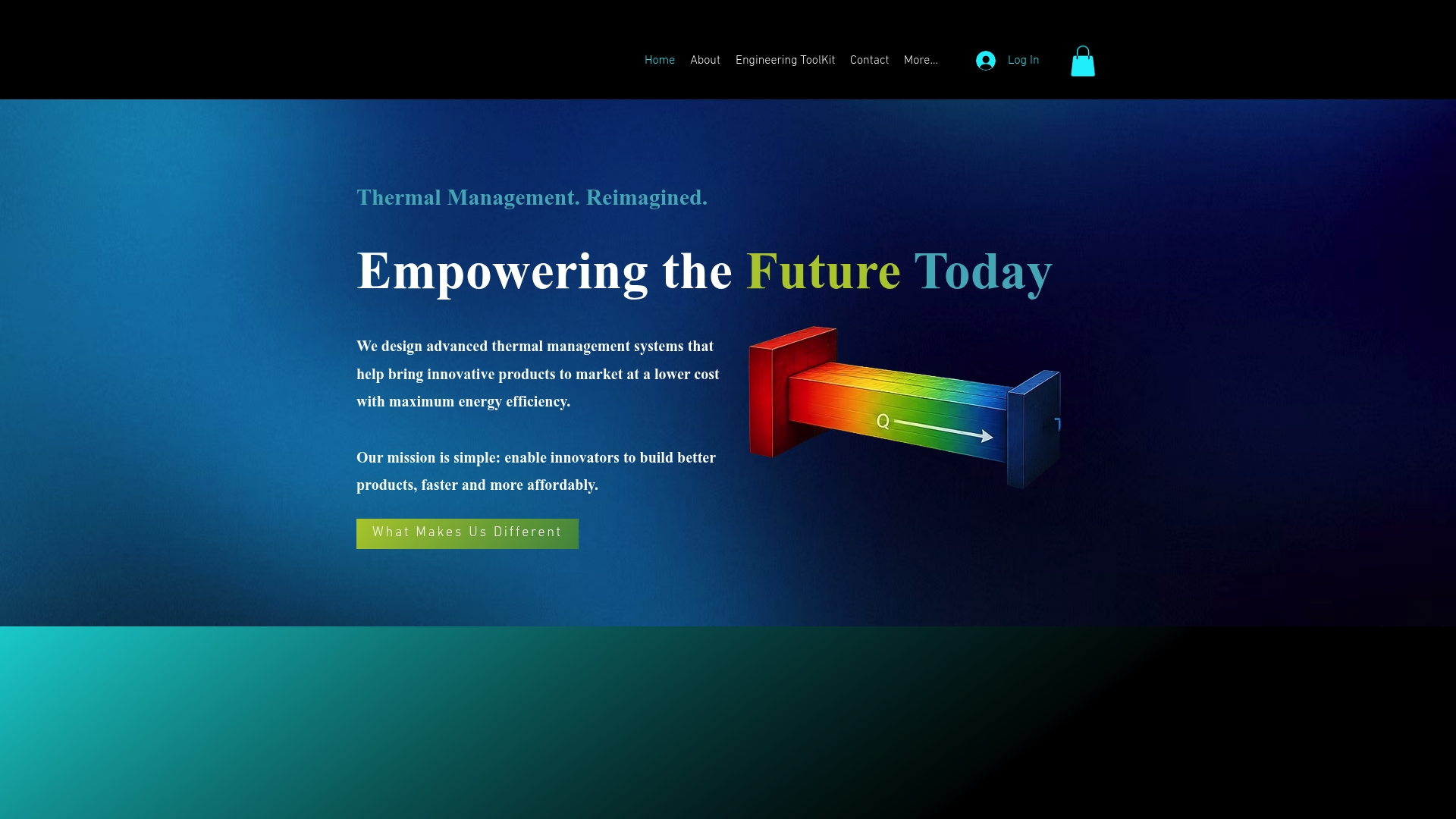
Open the Engineering Toolkit and run your first case today.
FAQ
Are web-based engineering simulations accurate enough for real work?
They can be, when the model is validated and the result is verified. A validated browser platform in a KIT heat exchanger study reported temperature deviations within ±0.5 K from laboratory reference values. For safety-critical decisions, confirm with a desktop solver and experiment.
Can I run a full desktop simulation package from a browser?
Yes, through a cloud-hosted virtual desktop. Universities such as Drexel let students reach full engineering packages from a browser using a remote desktop client. Performance depends on your connection and the resources the host assigns.
What is VVUQ and why does it matter for online tools?
VVUQ stands for verification, validation, and uncertainty quantification. It is how you show that a simulation solves its equations correctly, represents reality, and carries a quantified margin of error, as described in a NIST summary of CFD practice. It applies to browser tools exactly as it does to desktop software.
Where should a beginner start?
Start with topics you can check by hand, such as statics, basic heat transfer, or pipe flow. Collections like NASA Glenn’s interactive simulations organize exercises by concept, which makes it easy to find a gentle entry point.
Sources
Recommended
Comments